Step by step, with real screens

How to order, add funds and manage refills

Everything a first-time customer needs, in plain language. No technical knowledge required - follow the pictures and you are done in a few minutes.

1

Create your account

  1. Tap "Create account" at the top of any page.
  2. Enter your name, email and a password you will remember.
  3. Open the email we send you and click the confirmation link (check the spam folder just in case).
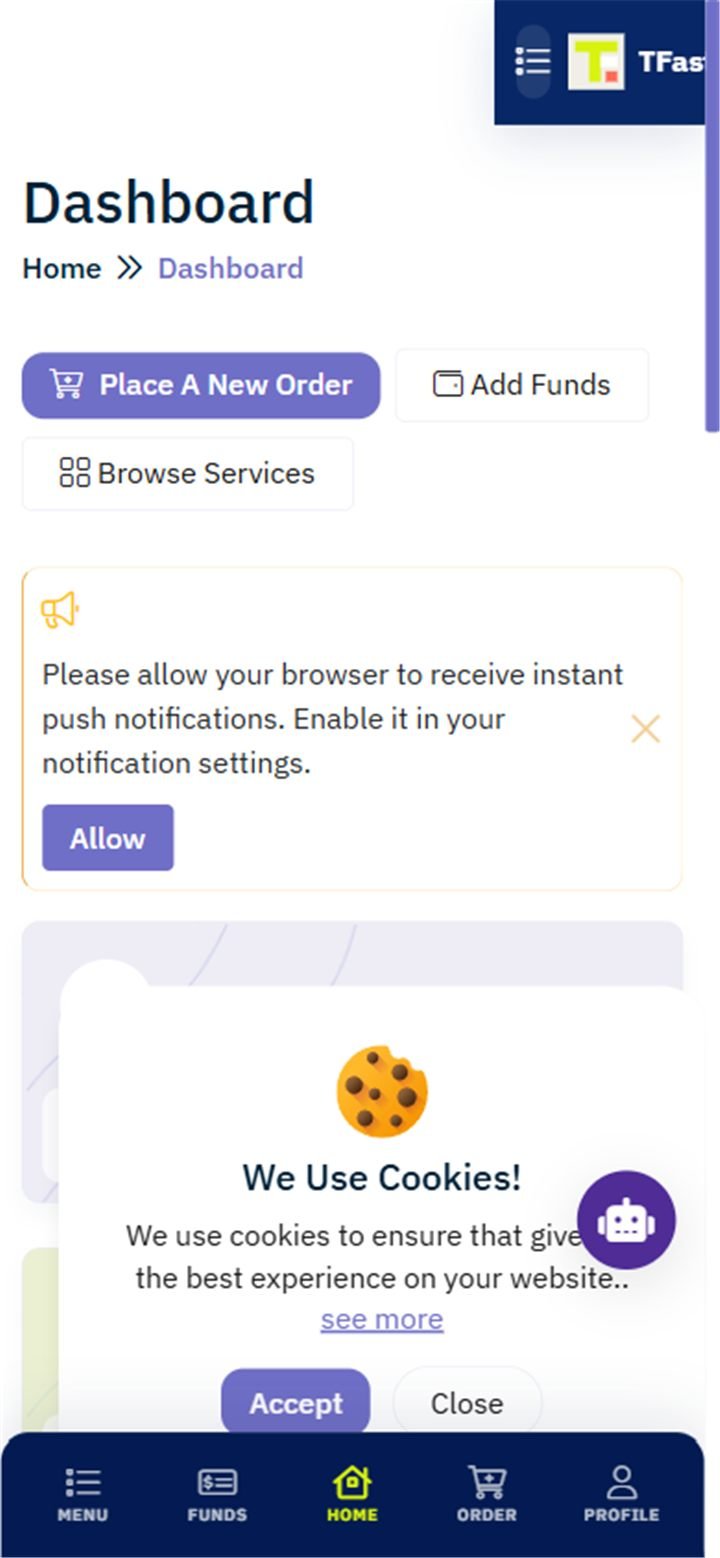
  4. You land straight on your dashboard - this is your home: balance, orders and support live here.

Tip: keep the tabs at the bottom of the screen. Home, Services, Free, Order and Account are always one tap away.
The customer dashboard with balance and orders
Your dashboard after signing in
2

Add funds to your wallet

  1. Open Account at the bottom, then choose "Add Funds".
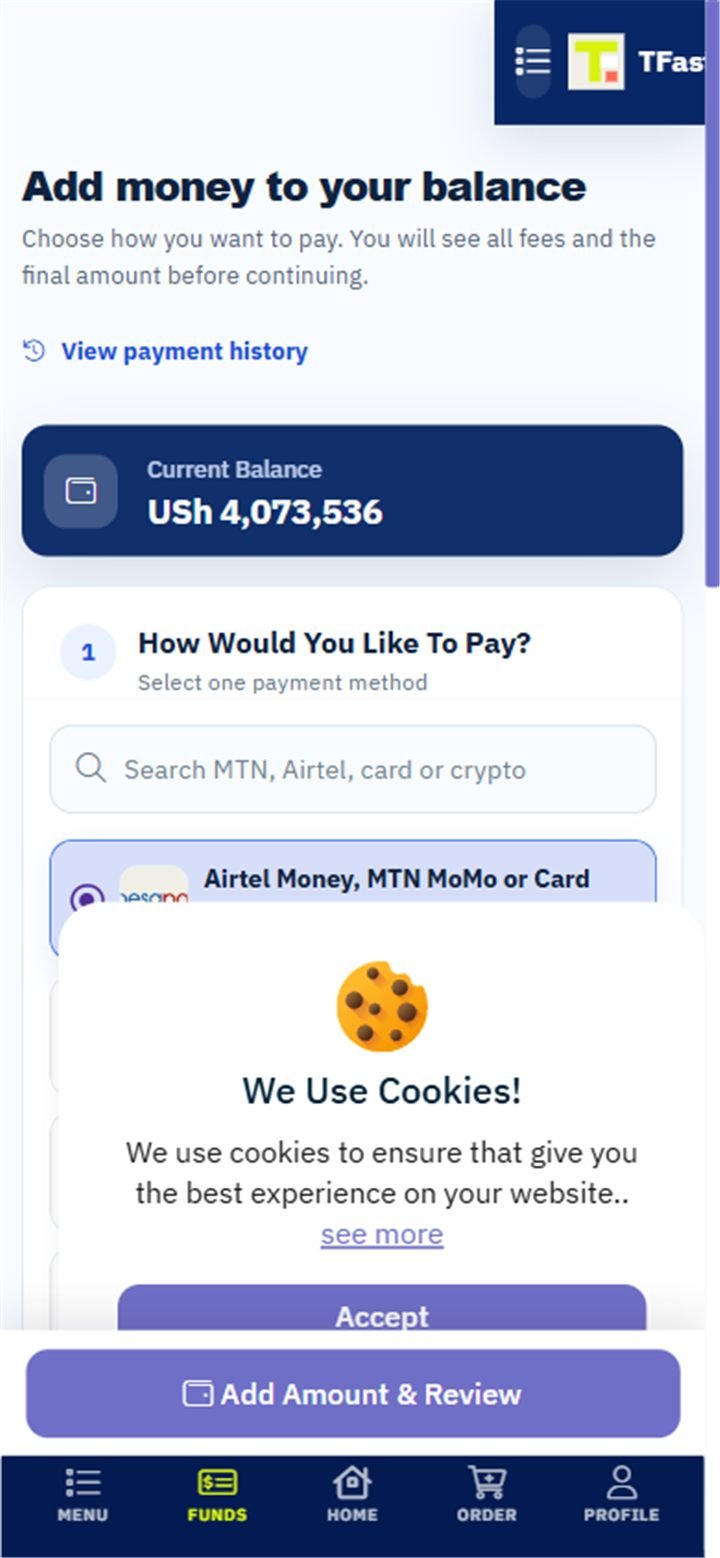
  2. Enter the amount you want to add and pick a payment method. MTN Mobile Money and Airtel Money are listed for Uganda, alongside card and bank options.
  3. Follow the payment instructions on screen. For mobile money you will see the exact amount, the account name and reference to use.
  4. Open the wallet again and it will show the new deposit as soon as the payment is confirmed. Manual mobile money transfers are confirmed by our team, usually within business hours.

Your wallet balance is what you pay orders from - nothing is charged automatically.

Add funds page with payment methods
Adding funds: amount, then payment method
3

Place an order in four taps

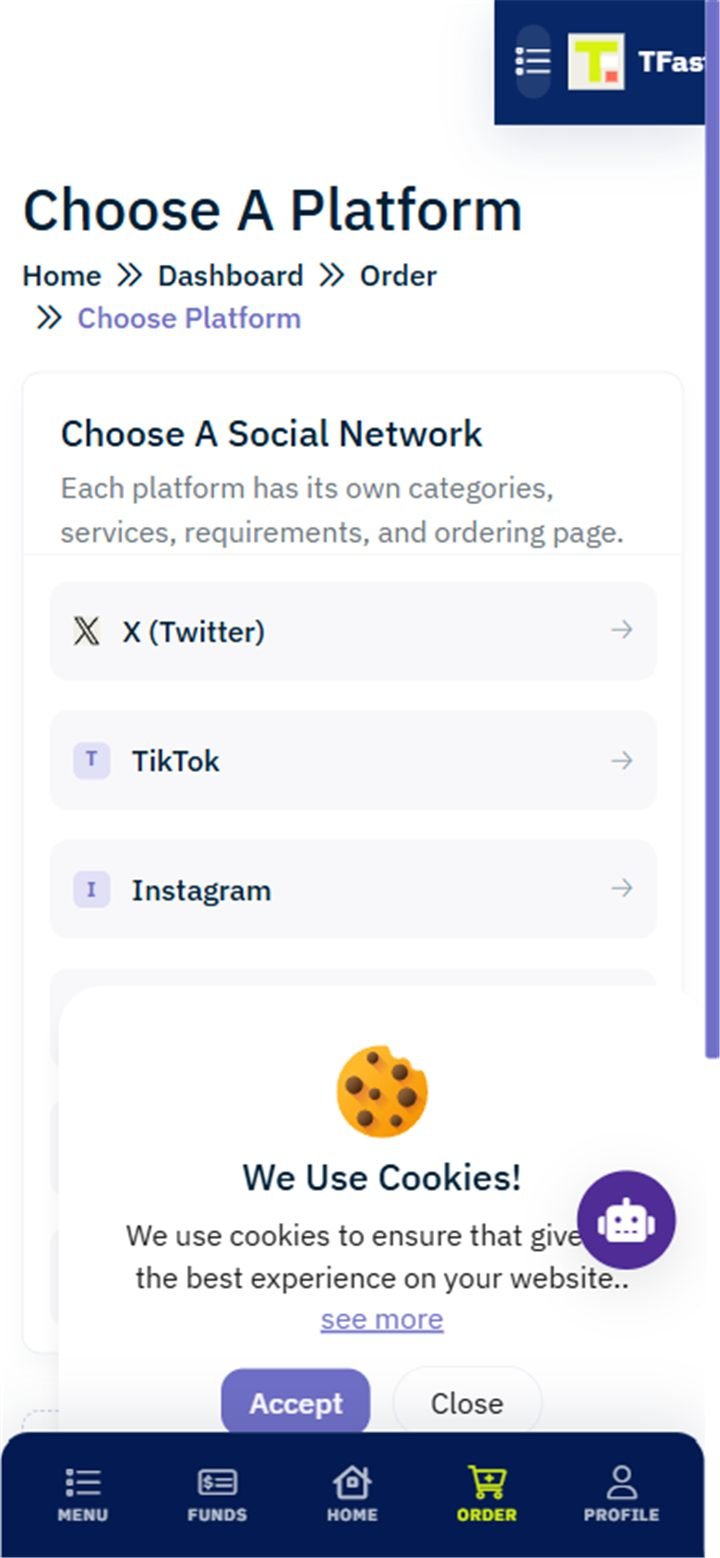
  1. Tap Order. Choose the platform you want to grow (Instagram, TikTok, YouTube...).
  2. Pick the service. Every service shows its price per 1,000, the smallest and largest amount you can order, the typical delivery time and whether it has a refill.
  3. Paste the link to your profile, post or video, and set the quantity. The total is calculated for you.
  4. Choose how to pay: your Wallet balance, or Pay now with a card or mobile money. Then confirm.

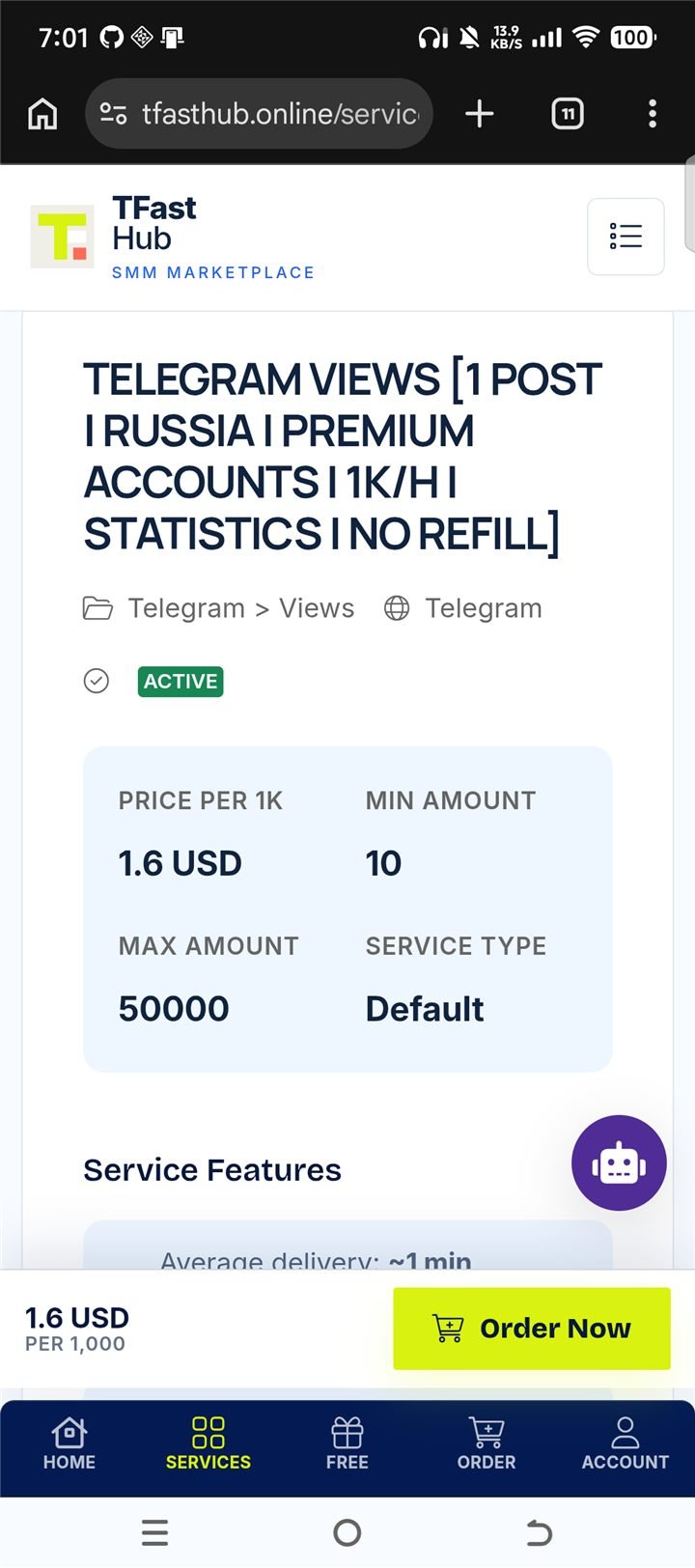
Want to see a service before paying? Every service page has a sticky Order Now button at the bottom, so you never have to scroll back up.

Choosing a platform when ordering
Step one of an order: pick the platform
A service page with price, limits and the sticky order bar
Every service page: price, limits, real average delivery and the Order Now bar
4

Paying per order (no wallet needed)

  1. At checkout pick "Pay now" and choose a payment method. We create an invoice for exactly that order - the amount is shown in your own currency.
  2. Complete the payment on the next screen. For card and automated methods the order starts by itself the moment the payment is confirmed.
  3. For manual methods (mobile money, bank transfer), our team confirms the money was received, then the order starts. You get a notification either way.
  4. Changed your mind? Open your orders and cancel the unpaid one - nothing is charged and your slot is freed instantly.

Unpaid orders cancel themselves after 6 hours so your account stays clean - we email you a reminder first. If you already sent money for it, that money is safe in your wallet.

Orders list with an unpaid order showing Pay Now and cancel options
Unpaid order waiting: Pay Now or cancel with one tap
5

Track what is happening

Open Orders to see every order and its status:

  • Awaiting payment - created, invoice not paid yet.
  • Processing - sent to the provider, work has started.
  • In progress - delivery is running; the progress bar shows how much is done.
  • Completed - finished. The delivered count is shown.
  • Partial - partly delivered; the rest is refunded to your wallet.
  • Canceled / Refunded - the money goes back to your wallet, never lost.

Tap any order for its full story: start count, remaining, timing and any refill history.

TFast Hub homepage on a phone
The marketplace home - search or tap a platform to start
6

Refills and drops, explained simply

Followers or views can drop a little after delivery - that is normal in social media and not a fault of the service. Here is how we protect you:

  1. Every service page shows the drop range the provider declares and whether refills are available (for example "Drop 0-10% - Refill 30 days").
  2. If a drop happens inside the refill window, open the completed order and tap Refill - for automatic services the request goes straight to the provider, otherwise our team handles it.
  3. We also measure real counts for tracked orders, so support can see exactly what happened: the count before your order, the peak, and the count now.
  4. If something cannot be refilled, our team arranges a fair solution - for example a partial refund straight back to your wallet.

Not sure yet? Try a free giveaway first - zero cost, fair daily limits, perfect for testing how everything works.

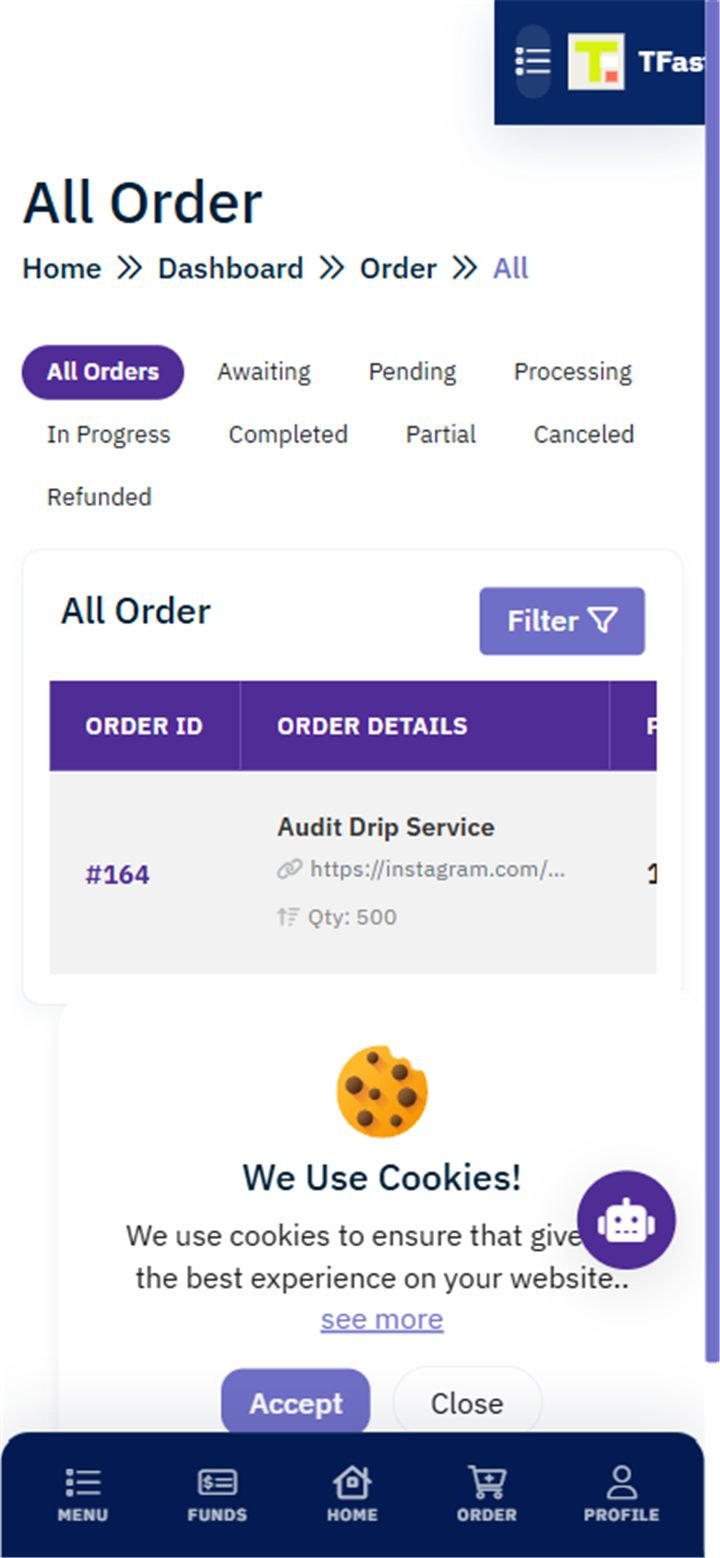
Orders list where refills are requested
Refills are requested from the order itself
7

Get help fast

  • The chat bubble on every page answers questions instantly (trends, services, how things work).
  • For account-specific help open a Support Ticket from your dashboard - we reply with your order details in front of us.
  • Prefer talking? WhatsApp +256 751 399 620 or email tfastdigital256@gmail.com.

Ready to grow?

Create your free account, add funds when you are ready, and place your first order in minutes.

TFastHub cookies

We use cookies!

We use cookies to give you the best experience on our website.. see more Accept Close
A new version is ready